
support@helpcomputersoftware.com
WinRxFax
WinRxFax is software that intefaces the WinRx Pharmacy system with a faxing system to enable sending and receiving faxes directly to and from WinRx.
WinRxFax can be interfaced with the SRFax e-fax service, or with FaxTalk faxing software. Or
both can be used simulateously. When using both, SRFax will be used to send the outgoing faxes, and incoming faxes will be received from both.
Pricing
WinRxFax can be purchaed for a one time license fee of $425 (CAD plus applicable taxes) which includes install, setup, support, and program updates.
Requirements
- WinRx installed
- Monitor capable of 1920x1080 resolution or higher recommended
- Backup system (more info here)
- SRFax or FaxTalk installed
For use with SRFax:
- Active SRFax account (see plans here)
- High speed internet connection
For use with FaxTalk:
- FaxTalk FaxCenter Pro or FaxTalk Multiline Server installed *
- For analog fax:
- Fax modem installed on one computer
- Access to an analog phone/fax line (or fax compatible VOIP phone line)
- A phone splitter (if sharing the phone line with a fax machine)
- For internet fax:
- A T.38 fax service account with a provider such as Cloudli
- High speed internet connection
Demo Options
Contact support@helpcomputersoftware.com to request a free demo period to try out the fax module. If using SRFax, you will also need to sign up for a 30 day trial period for one of their plan options. For FaxTalk you can get a 15 day trial version of the software.
Comparison of Fax Service Types

Types of Forms That Can Be Faxed From WinRx
- Refill requests
- Doctor notes
- Prescription transfer forms
- Missed narcotic dose forms (RU reversal)
- Any document from the "Documents" section in the edit prescription or patient profile screens
Example Scenario - Sending a Fax
- In WinRx create a refill request.
- After creating the refill request WinMail will open with the doctor set as the recipient and the Subject, Attachment and Message field populated automatically.
- Edit any fields as needed then click "Send" to send the fax job.

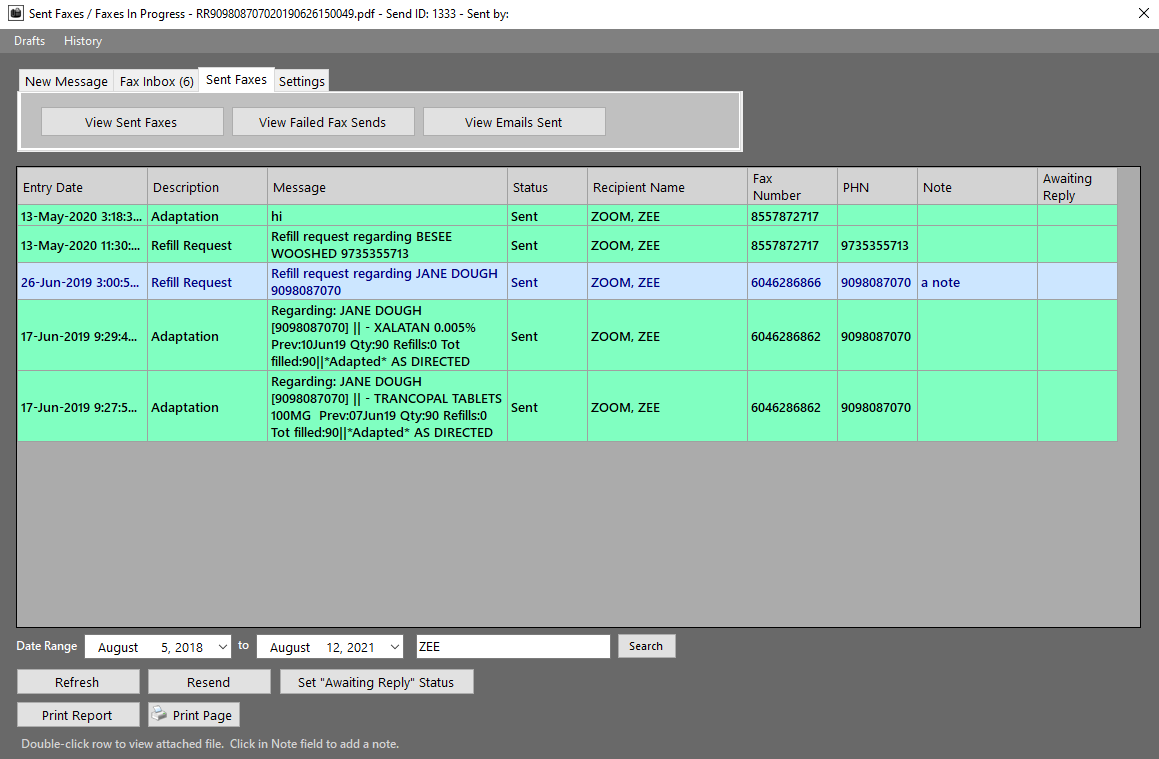
- After clikcing Send you can go to [Sent Faxes] to view the status of the fax job.
- The status will change to "Sent" when successful or "Failed" if it was not able to go through.
- If the fax fails you can go to [View Failed Fax Sends], correct the fax number if needed and resend the fax, or delete the fax.
Example Scenario - Receiving a Fax
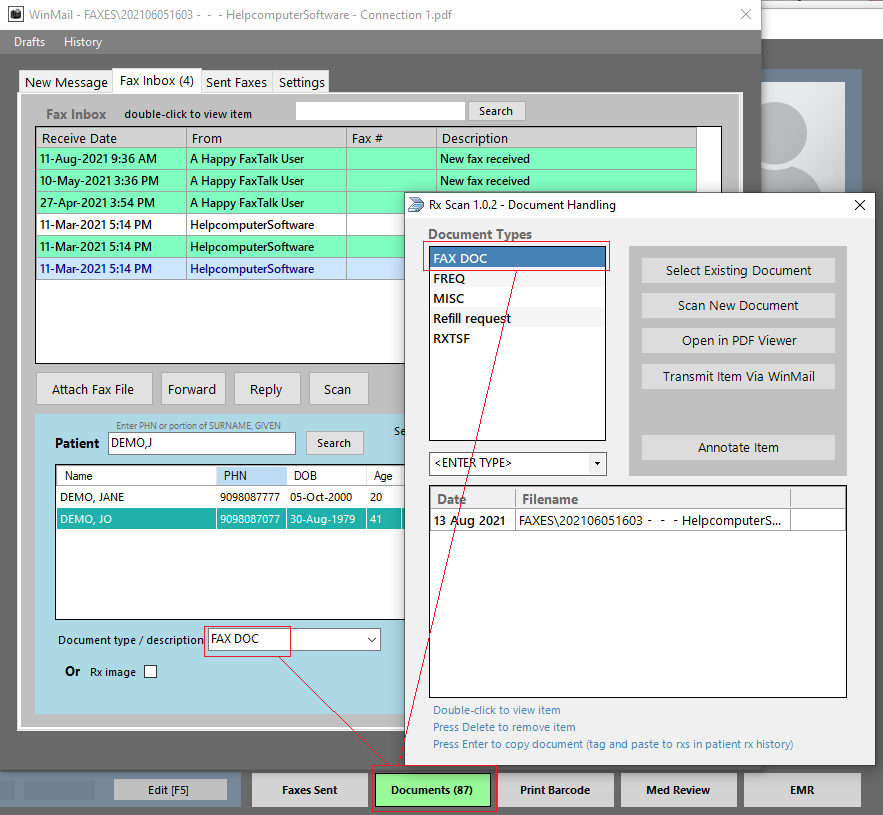
- Received faxes will appear in the WinMail Inbox section.
- You can double-click the item in the inbox to view the received fax PDF file.
- Click "Attach File" to attach the received file to a patient record in WinRx.
- The fax can be attached as a patient document or as a "Rx image" which will appear in the "ERx txns" screen in WinRx and can be processed as a new prescription from there.
- After clicking "Done" the fax description will be updated and you can click "Archive Fax" which will place it in WinMail in [History] > [Faxes received].

- In WinRx you will be able to view the attached fax by clicking the "Documents" button on the patient's profile.
- Documents can also be faxed from this screen by clicking "Transmit Item Via WinMail".
Processing Faxed Prescriptions
After assigning a fax as an Rx Image, you can go to Browse > "ERx Txns" in WinRx and process the prescription. To attach a fax to a copied prescription, hit F3 or F7 to view the patient's prescription profile, tag the prescriptions and hit F8 to copy to new.

Setup
The WinRxFax program needs to be installed on one computer only. If using SRFax it should be installed on the server comptuer, and for FaxTalk it will need to be installed on the computer that has the fax modem installed. Contact support@helpcomputersoftware.com for setup instruction details.
Backups
Since the PDF documents will be stored on your local hard drive you will need to set up a backup system to ensure all your files are backed up in compliance with the College's bylaw changes regarding electronic storage of records. See here and here.
There are different options available for this such as cloud-based backup systems, removable hard drives and Network Attached Storage. You may want to combine one or more of these systems to add an extra level of redundancy. You should consult with your computer tech about setting up a backup system that works best for you.
Applied Robotics has also recently developed it's own cloud backup system that is now available for WinRx customers. You can find our more about that here: arirx.ca/#backup
A Network Attached Storage (NAS) device is a standalone storage unit that is connected to your local network. This type of system is typically faster than cloud-based backups, but the data is stored on site so it is still potentially vulnerable to theft or disaster. Here is one example of a NAS device that is designed to be somewhat disaster-proof (ioSafe).
If you choose to go with a cloud-based backup system you will need to ensure that the system is compliant with applicable Privacy Laws. PharmaNet data is subject to B.C.’s Freedom of Information and Protection of Privacy Act (FIPPA). Therefore, any information in PharmaNet or obtained from PharmaNet must be accessed, disclosed and stored in Canada. For more information on this and a list of some of these backup providers have a look at the articles here and here.
* FaxTalk FaxCenter Pro is a third party software not affiliated with Applied Robotics or Helpcomputer Software. Any support issues related to the FaxTalk software that cannot be resolved by our support team will need to be referred to FaxTalk support for further troubleshooting.